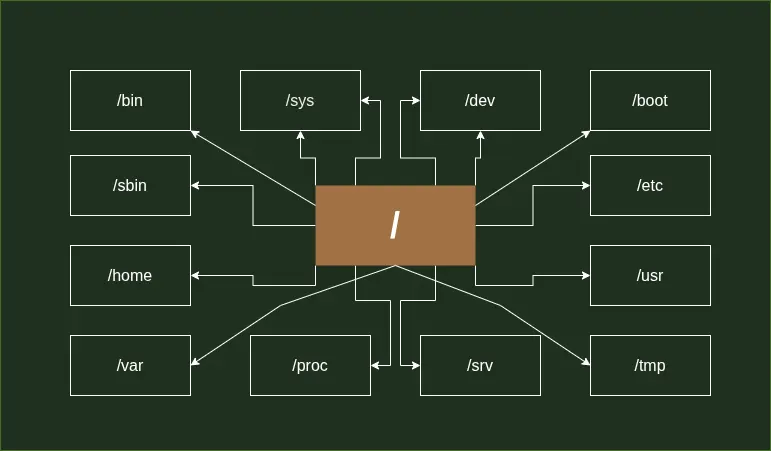
Everything on the Linux system is a file, yes even the directories we are going to discuss here. Let’s learn some basics of the Linux Filesystem before moving forward.
Directory: A special sort of file that holds links to other files. Folder is also an interchangeable name for Directory.
File: A self-contained piece information available to the OS and other programs. They are owned by the user who creates them.
Filesystem: It refers to the filesystem hierarchy, in which the files are organized and manager by the OS. OR it can refer to the type of format that is used to store files on a block device such as EXT4, XFS, ZFS, BTRFS etc.
Link: When a file points to another file or directory, it is called a symbolic link. While symbolic link acts as a shortcut to the linked file or directory, a hard link is an exact reference to the file data on the disk (inode). Basically, a hard link is another name for the same file, and doesn’t work on directories.

TipYou have learnt only about the few basic terms those are helpful to understand the Linux directory structure. The detailed guide will be covered in some other blog or watch this video.
Root Directory /
A Root Directory / sits at the top of a Linux Filesystem hierarchy. It contains boot, configuration files, system binaries and users’ home directories etc. It serves as a parent directory to all other directories and files.
Binaries /bin
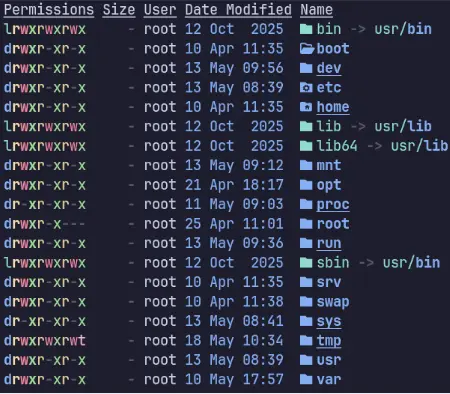
The /bin directory contains essential user accessible command binaries like ls, cat, rm, grep, rfkill etc. This directory is usually symlinked to /usr/bin. These commands are available to all the users on the system. These binaries are needed for basic system operations like remove, copy, move, listing directories, killing radio device etc.
Boot Directory /boot
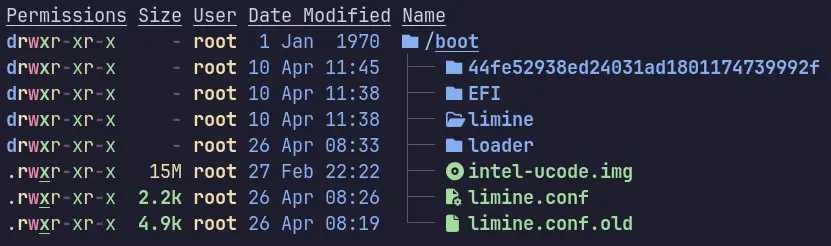
It contains all the files necessary for system boot up including Linux Kernel and bootloader configuration files. You can install more than one Kernel inside your /boot in case one fails.
Devices /dev
The /dev directory contains device driver as ordinary files. The drivers allow an application to interact with a device by using standard Input/Output system calls.
It also has /dev/null to discard standard output from programs and scripts and report back the operation is successfully completed. There is also /dev/random and /dev/urandom, which generate cryptographically secure random numbers. The programs like shred use this to write random data, to securely delete files and wipe storage devices and make them hard to recover even for the modern hardware.
Editable Text Configuration /etc
All the configuration files for operating system, programs, applications, and services live in the /etc directory. These configuration files are only editable via root. They apply system-wide for all users.
The /etc directory itself used to be called etcetera directory in the early Bell Labs documentation. It holds everything that doesn’t fit in any other directory, that’s why the name. But Filesystem Hierarchy Standards (FHS) limits its scope to static configuration files, and may not contain binaries.
User Home /home
The /home/<username> is the home to all the local users available on the system. Every local user has its home directory under /home/$USER which further contains XDG user directories. It contains user’s personal data as well as configuration files limited to that user only.
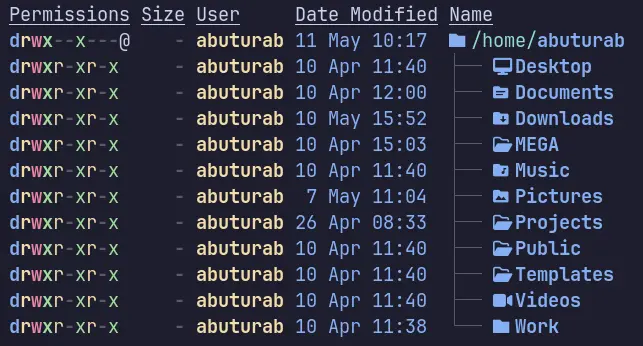
There are also hidden directories like .local, .config, .cache etc. The applications running as user, also store their configuration files in the XDG_CONFIG_HOME or in a hidden directory at /home/<username>/.. The XDG_CONFIG_HOME is located at ~/.config.
Shared Libraries /lib
It contains shared libraries of the binaries present in the /bin /sbin directories. Depending on the system, lib and lib64 for 32-bit and 64-bit respectively for shared libraries may also be present.
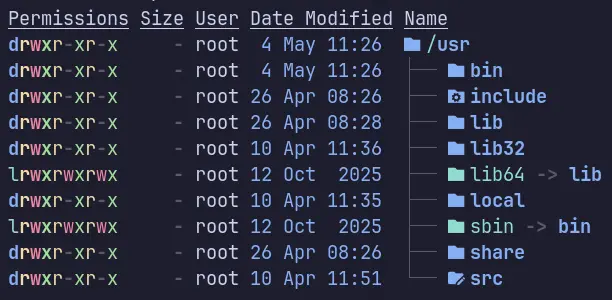
Like many others, lib directories are also symlinked to /usr/lib and /usr/lib64 directories to consolidate directory structure on the modern Linux Systems.
Removable Media /media
When you plugged in a USB storage device, if it’s autoconfigured to mount, it will mount at /media. It also acts as a mount point for CD/DVD ROMs.
InfoThe USB devices on Arch Linux, are mounted to
/run/media/$USERbyudiskctl.
Manual Mount /mnt
You can manually mount Hard Disk Drives, Partitions and other media to /mnt. It’s mostly a temporary mount point, which maybe used during Linux chroot and other filesystem operations. For a permanent mount, you will need to add your mount points to the fstab file present in the /etc directory.
Let’s manually mount a USB stick, to /mnt, first create a mount point:
sudo mkdir /mnt/usb_stick
Identity the device name for our USB:
lsblk
Our USB is called sda and my USB has two partitions, the usable one with 29 GB of size is sda1:
sudo mount /dev/sda1 /mnt/usb_stick
To unmount:
sudo umount /mnt/usb_stick
Optional Software /opt
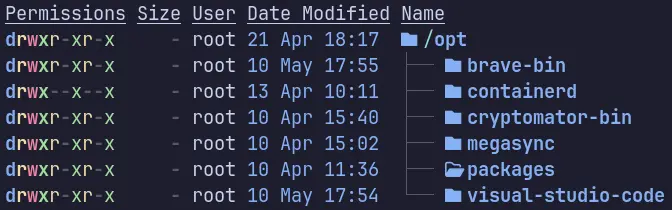
The add-on software applications which don’t fit in the /bin or /sbin directories or not part of standard OS distribution reside here, like proprietary applications, or applications downloaded from sources other than the OS repos. It also contains software which you compile yourself from the source (AUR packages on Arch). Applications will be present in the /opt/bin directory, while their libraries in the /opt/lib directory.
In the Enterprise environment, many custom applications and programs are used, which are installed inside the /opt directory.
Processes /proc
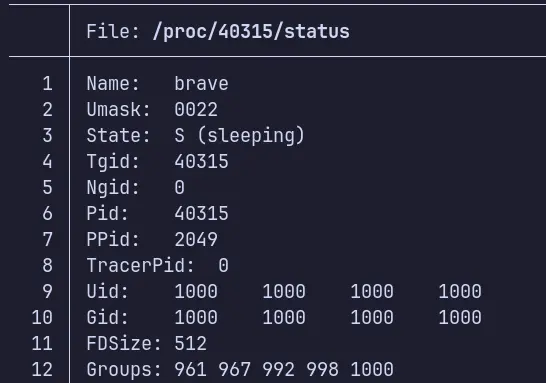
The /proc directory contains information about running processes and Kernel parameters as files. It contains dynamically generated data, and doesn’t store anything on the disk. It’s a virtual directory.
Virtual Filesystem (VFS)A VFS is an abstraction layer in the kernel that provides unified standard interface for userspace programs to interact with different types of file systems i.e., NTFS, FAT32, XFS etc. It’s what makes it possible, the UNIX philosophy of everything is a file. To list all the VFS on your Linux system
mount | grep -v sd | grep -v :/.
Root Home Directory /root
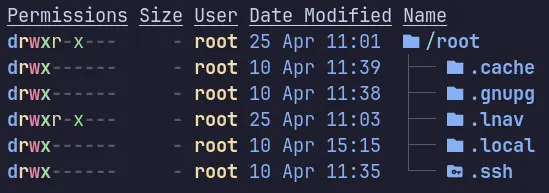
The /root is a home for root user, a superuser with administrative privileges. It contains all the files, directories, and configuration related to the root user, i.e., root .local, .bashrc etc.
Runtime Data /run
It contains volatile runtime data, which wipes out on the reboot. It gives information about the running system since last boot i.e., currently logged-in users, running daemons and services.
System Binaries /sbin
The /sbin directory contains all the necessary programs needed for system administration. It contains programs like fsck, ip, traceroute etc. The /sbin directory on modern Linux systems is symlinked to /usr/sbin. You can use tools with the sudo command that temporary grants you superuser rights, so caution is advised.
InfoOn Arch Linux, both
/binand/sbinare symlinked to the/usr/binwhich essentially means, they contain exactly the same binaries.

Services /srv
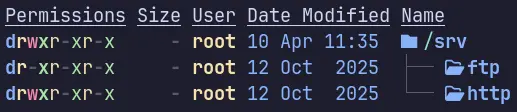
The /srv directory is more common on the servers. It contains data for the services provided by the system, such HTTP server content, or File Transfer Protocol (FTP) server data. These directories would contain data, if you run server on your home box.
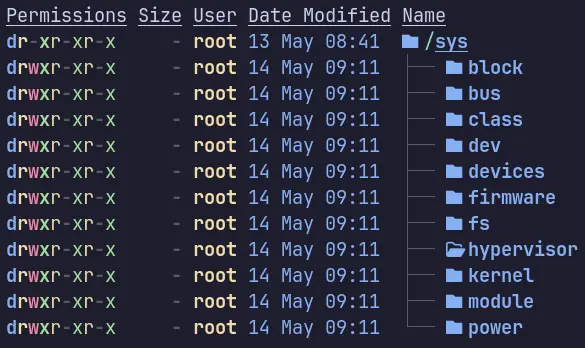
System /sys
A virtual filesystem that provides interface to the Kernel data structures and devices information. The /sys directory holds information about your low level hardware devices.
Basically, /sys directory contain information from the devices connected to your computer. In some cases, you can manipulate those devices’ files stored in the /sys directory.
In the ThinkPad: Linux Battery Monitoring and Charge Control blog, we interacted with our ThinkPad battery to control its charging state via the low level access to the I/O battery files in the /sys/class/power_supply/BAT0 directory.
Temporary Files /tmp
All the temporary system and user files reside in the /tmp directory. It usually wipes out on system reboot. System services and running applications might write data to this directory on temporary bases which they may need later.
You can also save your temporary data in there as well. I usually use it for cloning git repos, which I need to quickly refer something, and won’t mind it being deleted on the reboot.
The /tmp directory is one of the few directories in the / that you can interact with without superuser privileges.
Unix System Resources /usr
It contains the majority of system files, libraries, and binaries. It also contains the documentation for applications installed on the system, as well as the pre-installed system binaries and programs. Furthermore, it is organized into the subdirectories.
In the early days of Linux, the /usr directory used to contain users’ home directories.
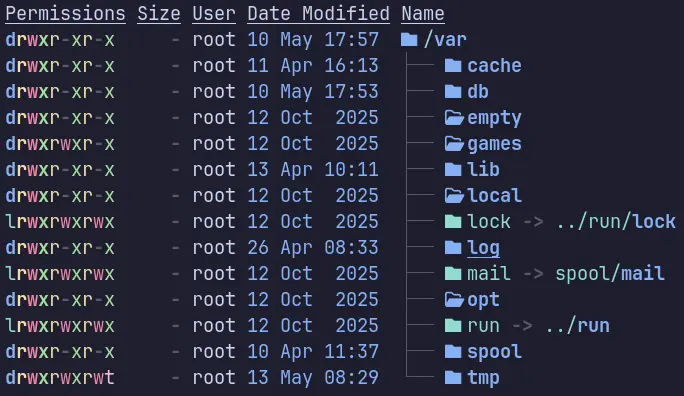
Variable Data /var
When a Linux System is running, there is a variable data like system logs, spool files (tasks waiting to be processed), and temporary e-mail files etc., stored in the /var directory. This data is variable in nature and constantly changing.
There is also a /var/tmp directory which contains temporary data which needs to be preserved on the reboot.
End Note!Your system might not have some directories mentioned above. For example,
/srvdirectory is generally present on the servers, or the home boxes which run some kind of web/file server. The filesystem on Linux distributions are similar in nature. The best way to know it, is by exploring it yourself. So, just go and explore.
References
- Classic SysAdmin: The Linux Filesystem Explained — The Linux Foundation
- Filesystem Hierarchy Standard — Wikipedia
- Linux Directories Explained in 100 Seconds — Fireship
- Learning The Linux File System 2025 — Joe Collins (EzeeLinux)
- The Linux File System explained in 1,233 seconds // Linux for Hackers // EP 2 — NetworkChuck
- Linux File System Structure Explained: From / to /usr | Linux Basics — WhiteboardDoodles
- Linux Internals: Virtual File System (VFS) — DJ Ware
- Securely wipe disk — ArchWiki
- Linux Directory Structure Simplified: A Comprehensive Guide — DEV.to