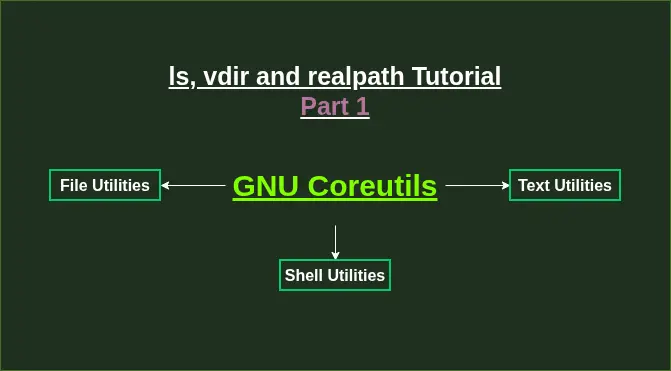
It’s a part of multi blogs series, which will explain how to use GNU Core Utilities, useful for novice and professionals alike. GNU Coreutils are file, shell, and text manipulation commands/tools which are available on every GNU based Linux system.
In today’s blog, you will learn about Coreutils that are used in everyday file operations. Let’s begin:
NoteI will only explain those functions and commands which are in my opinion add value to everyday usage and management of the Linux Systems.
ls — list directory contents
To show the contents of a directory:
ls
- This command will list only non-hidden directories and files.
List subdirectories and their content recursively:
ls -R
--recursive/-RUseful for investigation of unknown directories and their content
List entries by column (default):
ls -C

List entries by rows instead of default column view:
ls -x

List one file per line:
ls -1
Show Hidden Entries
To list entries started with . (hidden):
ls -a
--all/-alists hidden files and directories
The flag --all also shows . And .. Which represent current directory and parent directory respectively. To hide those:
ls -A
---almost-all/-A It doesn’t list implied . and ..
Show Long Listings
To show long listing format:
ls -l
-lShows permissions, owner, group, size and timestamps, along with the entries
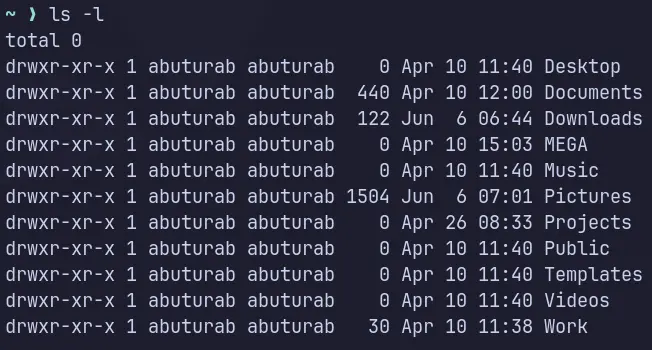
To omit group information from long listing format, rest is the same as -l flag listing:
ls -o
-o/-lG/-l --no-groupExclude group information from long listing format
Owner can be omitted as:
ls -g
Print the author information of each file, when used with -l:
ls -l --author
- It’s useful on multi-user systems to find out of who is the owner of the particular file lingering around.
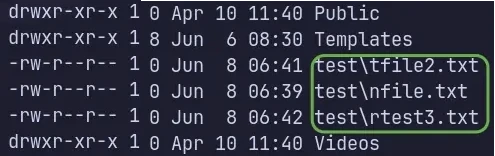
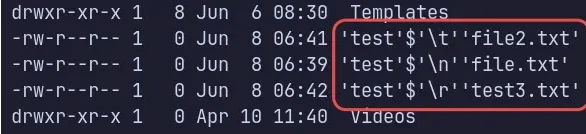
Print C-Style backslash character (\n, \t, \r etc.) for non-printable and special characters.
ls -l -b
--escape/-bflag prints C-Style backslash characters
C-Style character map:
| Escape | Meaning |
|---|---|
| \n | Newline |
| \t | Tab |
| \r | Carriage Return |
| \\ | Literal Backslash |
| \0 | Null character |
| \040 | Space |
Symbolic Link Listings
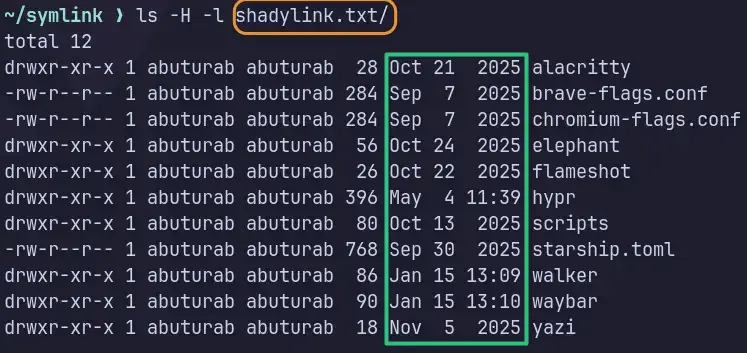
Follow the symbolic link listed on the command line:
ls -l -H <SYMLINK>
- The flags
--dereference-command-lineand-Hserve the same purpose. - Only follow the symbolic links if file/DIR is given in CLI argument
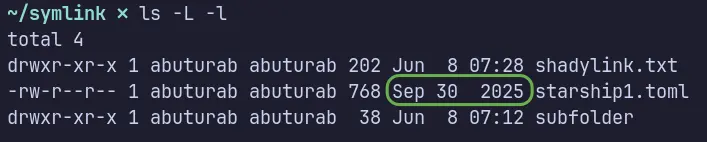
Follow the link and show information for the file itself not the symbolic link. This means ls will follow the link and display information about the target file or directory, not the link itself.
ls -l -L
- The flags
--dereferenceand-Lare the same.
Print Size Information
Print allocated size of each file in blocks:
ls -s
--size/-sshows the file size in bytes (blocks) which are 1024 bytes (1 KiB) by default.
You can mention the specific unit yourself:
ls -s --block-size=M
- K, M, G etc. are the powers of 1024(binary) or prefixes like KiB=K, MiB=M, GiB=G and so on.
- KB, MB, GB etc. are the multiples of 1000 (decimal)
To show human-readable size (binary) with flags like -s and -l:
ls -sh
--human-readable/-hare the same
The flag --si prints the size information like -h but in decimals (powers of 1000):
ls --si -l
- The
--siflag should be used with either-sor-lflag
Sorting Order
To list directories before files:
ls --show-directories-first
- It can be combined with
-l-aflags
Reverse order while sorting:
ls -r
--reverse/-rReverse the current order of listings
Sort by file size:
ls -S
--size/-SSort the largest sized file first, doesn’t help with directories
To sort by time:
ls -t
-tSort the newest modified file first
TipThe sort by
-tand-twith--time=mtimegive the same results. The-talone defaults to the last modification time.
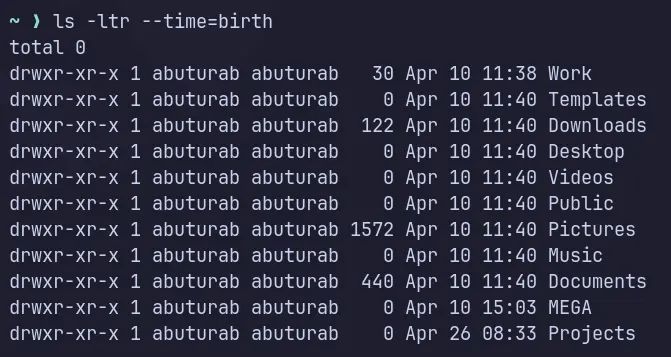
Sort by time, based on birth time (creation time):
ls -t --time=birth
- Combining with
-lshows the creation/birth time - It will print newly created item first, flag
-rcan show the oldest birth first by reversing the order.
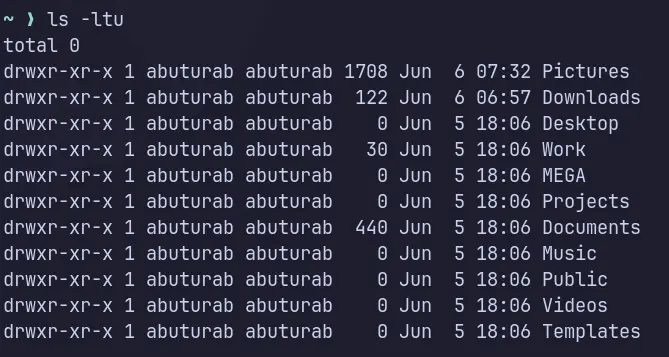
Sorting based on when a file is last accessed(no modification or write):
ls -lt --time=atime
-uThe shorter version of--time=atime
INFOOn modern Linux systems,
noatimemount option reduces the disk I/O operation by cutting down the access time updates. Whilerelatimemount option only update access metadata under certain conditions.
Sort by last metadata change time:
ls -lt --time=ctime
- The flag
--time=ctimecan be substituted to-c
TipIt records changes to ownership and permissions along with creation and edit timestamps. While
--time=mtimeonly records creation and edit timestamps.
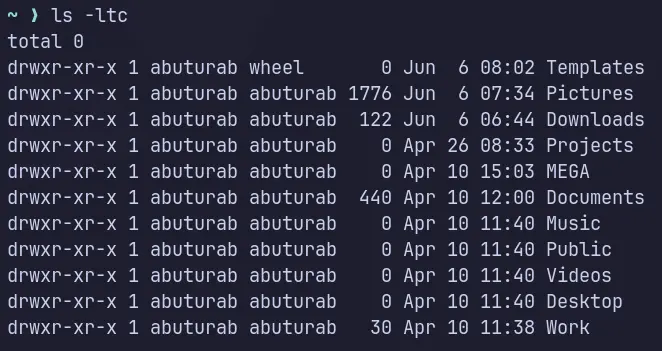
Timestamps Long Listing
NoteTimestamp information is only shown when using the long listing format with the flag
-l, so all the below commands must be run with-lflag to actually see what’s happening with the timestamp information.
Timestamp Versions
You can see a different timestamp when listing with -l flag, which by-default shows the last modification times. You can achieve this without -t command which by-default sorts entries based on --time=WORD command.
Let’s list a last access time stamp which the files are last accessed by an editor, cat, or commands without modifying the entries order:
ls -l --time=atime
- The short version is
-u
Print the last metadata change timestamp:
ls -l --time=ctime
- The flags
--time=ctimeand-cserve the same purpose
Timestamp Display Properties
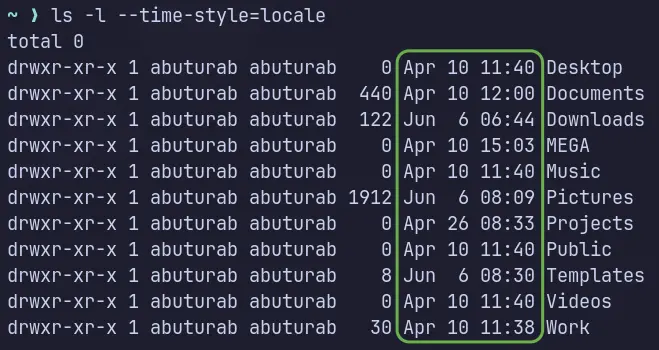
By default, long listing shows the locale timestamp:
ls -l --time-style=locale
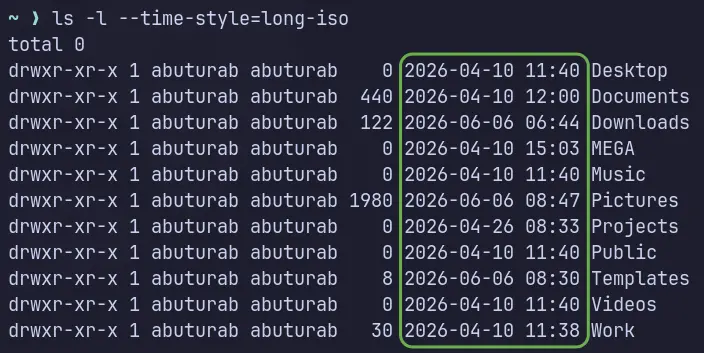
To show full date and time with minutes precision:
ls -l --time-style=long-iso
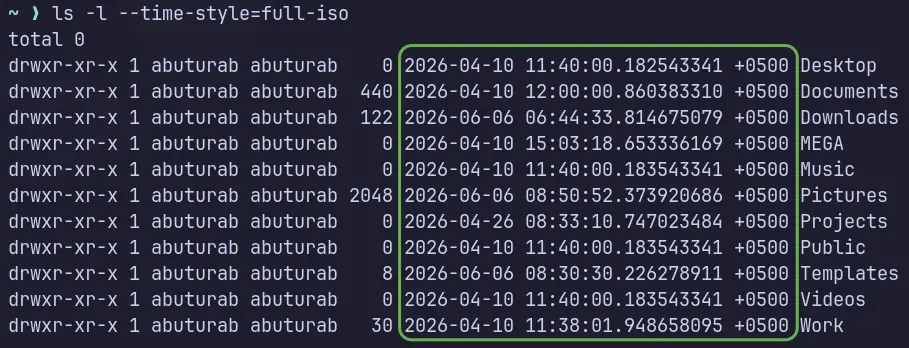
To list timestamps with nanosecond precision and time zone
ls -l --time-style=full-iso
- The flags
--time-style=full-isoand--full-timeserve the same purpose
IGNORE Entries via Pattern Matching
Basic ignore via -B flag:
ls -B
--ignore-backups/-Bdon’t list implied entries ending with~- The
~at the end of the file is used by different text editors and other programs to store backups of files.
Advance pattern matching:
ls --ignore=PATTERN
-I PATTERN/--ignore=PATTERNare the same
Basic Glob Patterns:
| Pattern | Matches |
|---|---|
| * | Anything (any length) |
| ? | Any single character |
| [abc] | One of these |
| *.txt | Any .txt file |
Hide all .text files:
ls -I *.txt
Hide all JSON backup files:
ls --ignore=*.json~
Hide all file1.txt, file2.txt and so on:
ls --ignore=file?.txt
Hide anything that has oct in their name anywhere:
ls --ignore=*oct*
- It’s case-sensitive
ls — Exit Codes
Following are some useful exit codes:
0 OK
1 There is some minor problem, like subdirectory is not accessible etc.
2 Serious issue, i.e., cannot access CLI argument
NoteModern Linux systems might just show the issue descriptively instead of an error code to simplify the troubleshooting process. To show an error code:
ls [argument] ; echo $?
Useful Tips
Show colored output:
ls --color=auto
- Shows different color for different entry types
- Can be combined with other commands

Show version information and exit:
ls --version
Distinguish between directories and files:
ls -F
- Shows
/with DIRs

Show help information:
ls --help
See manual pages:
man ls
Print index number of each file
ls -i
--inode/-iprint the index number
vdir — List Directory Contents
The command vdir is equivalent to ls -l -b; that is, by default files are listed in the long format and special characters are represented by C-Style backslash escape sequences.
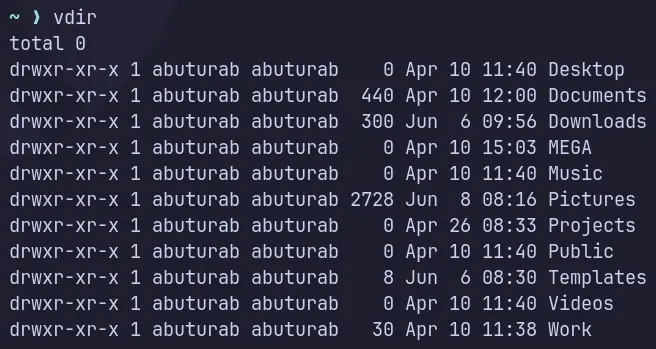
The advantage over ls -l -b is, vdir acts as a shorthand and chaining more flags becomes rather easy.
The size information (in powers of 1000):
vdir --si
Instead of writing:
ls -l -b --si
TipYou can chain other
lsflags withvdir, i.e.,--time,--block-size,--full-time,--reverse,--ignore=PATTERNand so on. Thevdircommand has basically all the same flags and options asls.
realpath — Resolve Symlink Paths
The command realpath prints the resolved symbolic link paths.
Resolve symlinks as encountered (default):
realpath /path/to/file
- The flag
-P/--physicalprints the same information asrealpathalone. It defaults to this, so we don’t need to write the whole flag.
The flag -E, all but the last component must exist (default):
realpath -E /path/to/file
--canonicalize/-E- If parent directory exists, it will show the path as is, doesn’t matter if symlink file exists or not
- That’s the default flag for
realpath

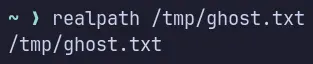
It will only throw error if parent directory for the given file doesn’t exist
- In our examples’ ghost.txt doesn’t exist but the parent directory
/tmpexist, so no error - In the following picture, parent directory
../ghost/doesn’t exist, so-Eflag throws an error.

Shows an error when the file/link doesn’t exist:
realpath -e /path/to/file
- Only prints the path, if symbolic link exists for the given path.
- The flags
-e/--canonicalize-existingare the same.


The -m/--canonicalize-missing flag doesn’t resolve anything, so no path or file existence is needed.
realpath -m /path/to/file

NoteThere is a
readlinkcommand, which has almost similar functionality. It might be useful in shell scripts. Check out the docs.
References
- GNU Coreutils — GNU Official Manual
- GNU Core Utilities — Wikipedia
manPAGES