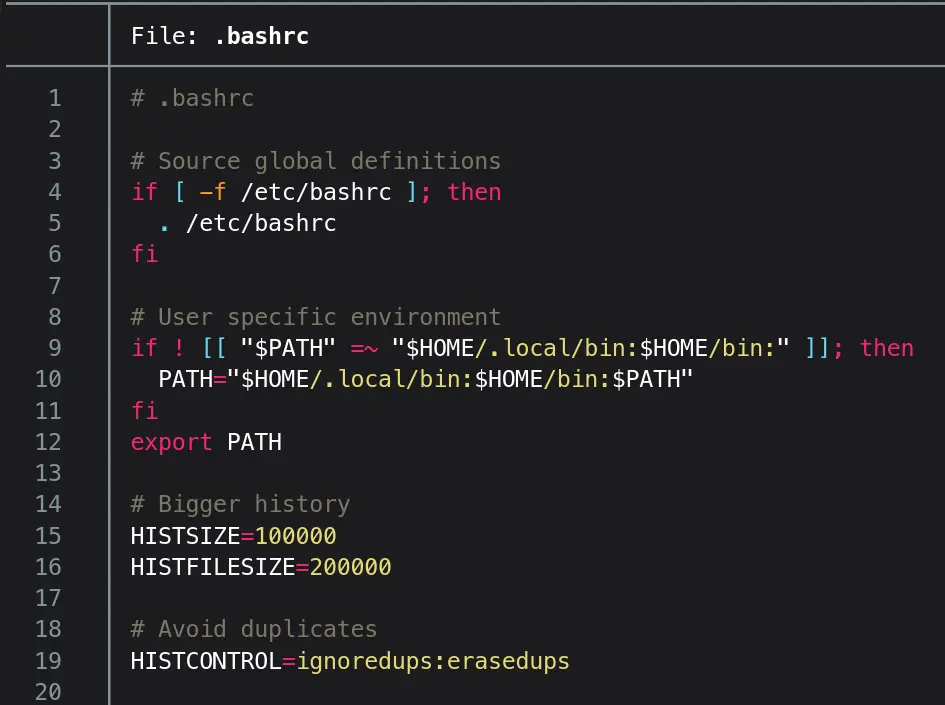
Bash is a default shell on all almost every major Linux distro. Let’s see how we can make our life easier by modifying bashrc, while working in the terminal.
My.bashrcConfigurationYou can just add it to your
.bashrcand start using, if you know what you are doing.
 1
 2
 3
 4
 5
 6
 7
 8
 9
10
11
12
13
14
15
16
17
18
19
20
21
22
23
24
25
26
27
28
29
30
31
32
33
34
35
36
37
38
39
40
41
42
43
44
45
46
47
48
49
50
51
52
53
54
55
56
57
58
59
60
61
62
63
64
65
66
67
68
69
70
71
72
73
74
75
## Bash History HISTSIZE=10000 HISTFILESIZE=20000 ### HISTFILE location export HISTFILE="$HOME/.bash_history" ### Ignore/Erase duplicates and spaces HISTCONTROL=ignoreboth:erasedups ### Append history shopt -s histappend ### Clear, Reload and Append PROMPT_COMMAND="history -a; history -c; history -r" ## Check & Update Display Dimensions shopt -s checkwinsize ## Smarter TAB Completion bind 'set completion-ignore-case on' ## Better Reverse History Search (Tested on Fedora Only) #if [[ $- == *i* ]]; then # __fzf_history__() { # local selected # selected=$(history | fzf --tac +s --reverse --height 40% | # sed 's/^[ ]*[0-9]*[ ]*//') || return # READLINE_LINE=$selected # READLINE_POINT=${#READLINE_LINE} # } # bind -x '"\C-r": __fzf_history__' #fi ## Custom Environment Variables #export PATH=~/.cargo/bin/:$PATH #export PATH=~/.npm-global/bin:$PATH #export PATH=~/.local/bin:$PATH #export EDITOR="nvim" #export BUNDLE_PATH=~/.gems ## Bitwarden SSH agent #export SSH_AUTH_SOCK=/home/abuturab/.bitwarden-ssh-agent.sock ## Custom Aliases ### Smarter Copy and Move alias cp='cp -vi' alias mv='mv -vi' ### Better ls command alias ls='ls --color=auto' alias ll='ls -l --color=auto' alias la='ls -al --color=auto' alias lah='ls -alh --color=auto' ### Even Prettier ls (requires lsd) #alias ls='lsd' #alias ll='lsd -l' #alias la='lsd -al' ### better cat alias cat='less -N' #alias cat='cat -n' # Pipe it to less ### bat: a (cat) with wings #alias cat='alias bat' #alias cat='alias batcat' #Debian-based systems ### rm alias `rm` = `rm -vi` ### Even Better rm (trash) #alias rm='trash -vi' #needs trash-cli package ### Better grep alias grep='grep -i --color=auto' ### Cloudflare Warp #alias connect="warp-cli connect" #alias disconnect="warp-cli disconnect" #alias status="warp-cli status" #alias restart="warp-cli disconnect && warp-cli connect" ### Editor #alias vim='nvim ' ## Starship Prompt eval "$(starship init bash)"This bashrc might break your shell, as some configurations need extra packages to be first installed on the system. I have commented out all those settings/aliases which require extra packages.
Now, let’s explain the configuration:
Bash History
A Bash history file:
export HISTFILE="$HOME/.bash_history"
Bigger bash history and in-memory history:
HISTSIZE=10000
HISTFILESIZE=20000
HISTSIZEKeeps up to 10,000 commands in the session memoryHISTFILESIZEKeeps up to 100,000 commands in the history file
Avoid Duplicates
To avoid duplicate spaces and matching commands in your history file:
HISTCONTROL=ignoreboth:erasedups
ignorebothIgnore lines starting with spaces and matching lines in the historyerasedupsRemove duplicated lines from the history
Append and Update History
When multiple terminal windows are opened, each session history won’t overwrite the others.
shopt -s histappend
To append latest command, clear and reload history file back into memory:
PROMPT_COMMAND="history -a; history -c; history -r"
history -aAppend the latest command(s) from the current session to the historyhistory -cclear the in-memory history of the current shellhistory -rRead the history files back into memory
Check & Update Terminal Display Dimensions
Check the size of the terminal window after each command and if necessary update the values of lines and columns:
shopt -s checkwinsize
The programs like less, btop etc., which rely on the window size to show information. With this option, they can update the information shown according the window dimensions.
Reverse Search History Ctrl+R
To make reverse search better, install the fzf package, then:
if [[ $- == *i* ]]; then
  __fzf_history__() {
    local selected
    selected=$(history | fzf --tac +s --reverse --height 40% |
      sed 's/^[ ]*[0-9]*[ ]*//') || return
    READLINE_LINE=$selected
    READLINE_POINT=${#READLINE_LINE}
  }
  bind -x '"\C-r": __fzf_history__'
fi
- Ctrl+R Search history in reverse
- Ctrl+J Move down in the history
- Ctrl+K Move up in the history
- Enter Add highlighted command to input shell, hit Enter again to run the command
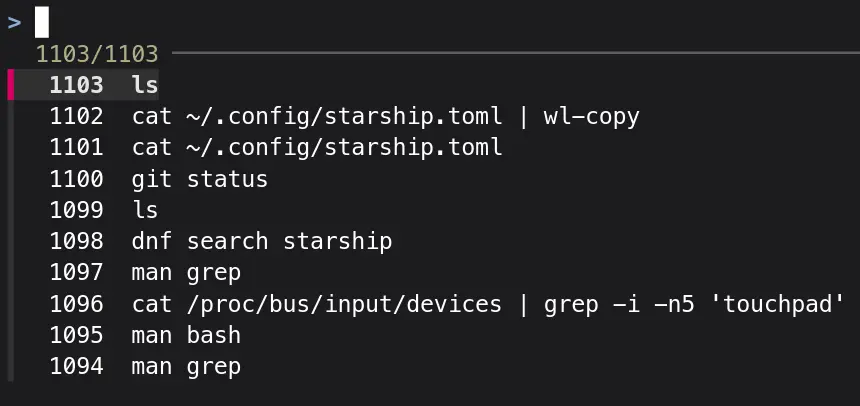
I have tested this only on Fedora
TAB Completion
When you try to change directory using cd, and hit TAB, it completes the path for you. Default is case-sensitive completion, let’s change it:
bind 'set completion-ignore-case on'
Now using shell commands when you write dow and hit TAB, it will autocomplete to Download ignoring the case.
Custom Environment Variables
Some necessary environment variables for development:
export PATH=~/.cargo/bin/:$PATH
export PATH=~/.npm-global/bin:$PATH
export PATH=~/.local/bin:$PATH
export EDITOR="nvim"
export BUNDLE_PATH=~/.gems
Custom Aliases
You can set custom aliases to gain some quality of life improvements:
cp and mv
cp -vi [Source] [Destination]
mv -vi [Source] [Destination]
--verbose/-vExplains what is being done--interactive/-iPrompt before overwrite
Let’s make them an alias:
alias cp='cp -vi'
alias mv='mv -vi'
So, it will show what are you copying, and before overwriting anything it will ask for confirmation [Reply with y to continue].
ls OR lsd
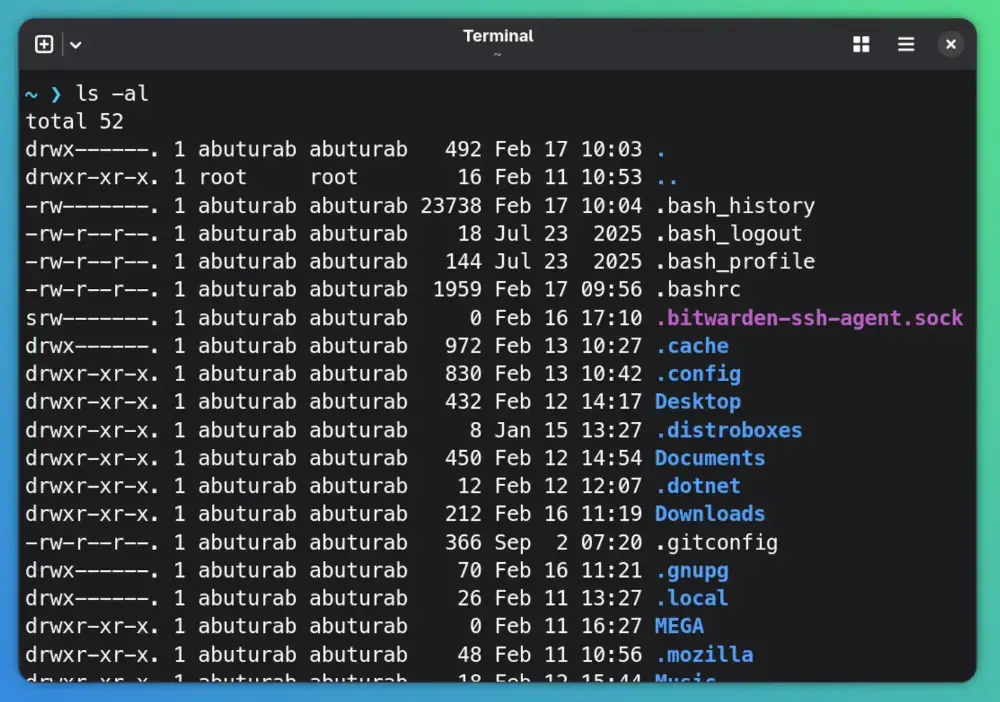
By default, ls output is not colorized.
Let’s make it better:
alias ls='ls --color=auto'

Other improvements:
alias ll='ls -l --color=auto'
alias la='ls -al --color=auto'
alias lah='ls -alh --color=auto'
-lUse a long listing format-a/--allshow hidden files and DIRS (starting with.)-h/--human-readablePrint human-readable sizes
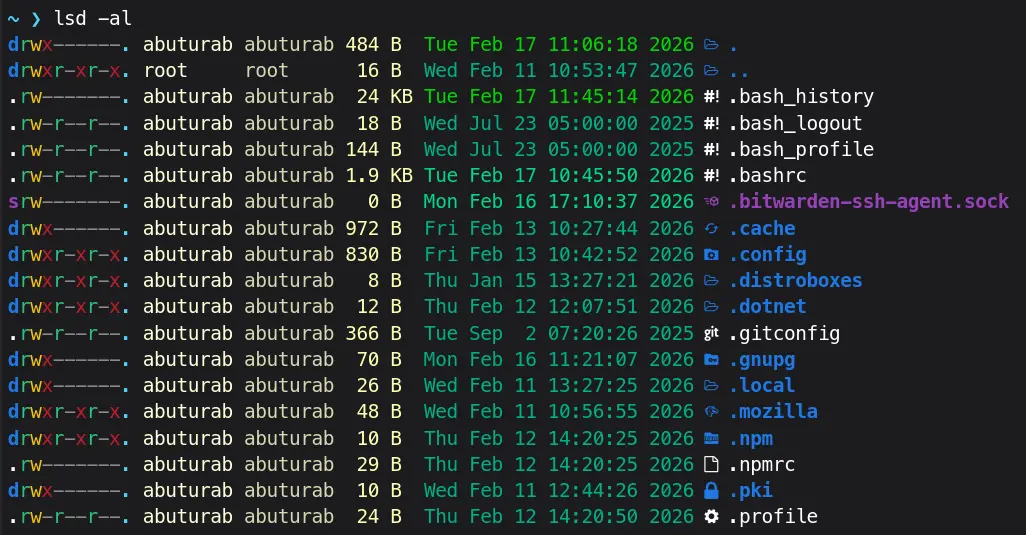
We can go a step further and replace ls with lsd, which is even prettier with icons support.
Installation RequiredFirst install
lsdpackage available on Fedora (dnf), Debian/Debian-based distros(apt), and Archlinux(pacman), with your respective package manager.
alias ls='lsd'
alias ll='lsd -l'
alias la='lsd -al'
We don’t need -h as it’s the default behavior for lsd
cat OR bat
The cat command output what’s in the file, without any beautification.
Let’s add:
alias cat='less -N'
lessInteractively show contents of the files-N/--LINE-NUMBERSCauses a line number to be displayed at the beginning of each line.
TipThe
lesscommand doesn’t support concatenation of outputs. If you rely on the feature use:cat -n FILE1 | less
|Pipes the output of previous command to next command
The more modern option is bat, which shows pretty colors with numbering, header with filename, and interactive viewing.
Installation RequiredYou will need the
batpackage on your system.
alias cat='alias bat'
OR
alias cat='alias batcat' #Debian-based systems
For full feature list visit.
rm OR trash
The rm command deletes files or directories from the system.
alias `rm` = `rm -vi`
-v/--verboseExplain what is being done-iPrompt before every removal
The rm command directly removes the files from the system without first moving them to the trash/recycle bin.
A better way to remove files is using trash-cli. It moves files to the recycle bin, in case of any accidental deletion, we restore deleted content via trash-restore. It also removes directories without any further flag/s needed.
Installation Required!Please install
trash-clipackage first on your distro of choice.
alias rm='trash -vi'
grep
To colorize grep:
alias grep='grep -i --color=auto'
-i/--ignore-caseIgnore case distinction in patterns or input data
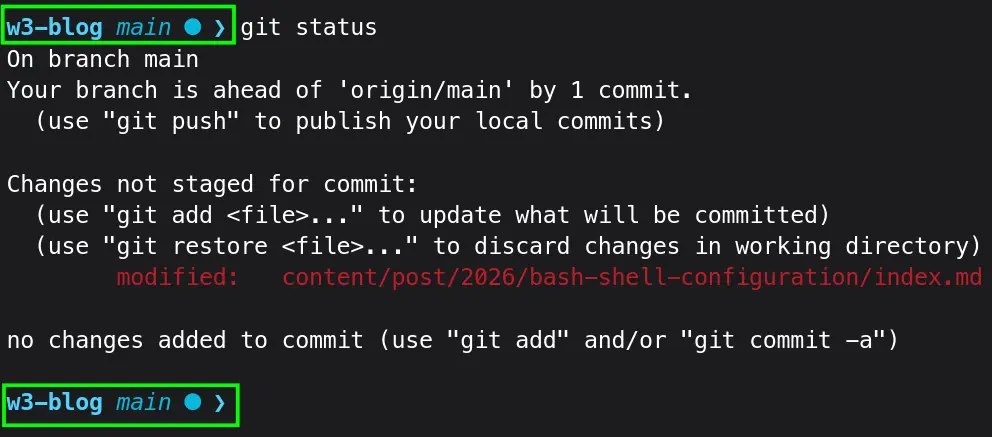
Beautify the Prompt
Install starship package first, then add following to the end of .bashrc:
eval "$(starship init bash)"
Check out my minimalist starship config:
Click here...
|
|
Save it as starship.toml to ~/.config/.
DocumentationCheckout the starship configuration docs, for more options and example configs.
References
- Bash Reference Manual — Official Manual
- Bash: Tips & Tricks — The ArchWiki