DNF5 Configuration dnf.conf
To improve package cache, colored display output etc., add the following lines to your /etc/dnf/dnf.conf file.
|
|
colorEnables color output duringDNFoperationsmax_parallel_downloadsEnables parallel downloading for faster updates & installationskeepcacheKeep downloaded packages in the CachedefaultyesIf enabled default answer to user confirmation prompt will be Yes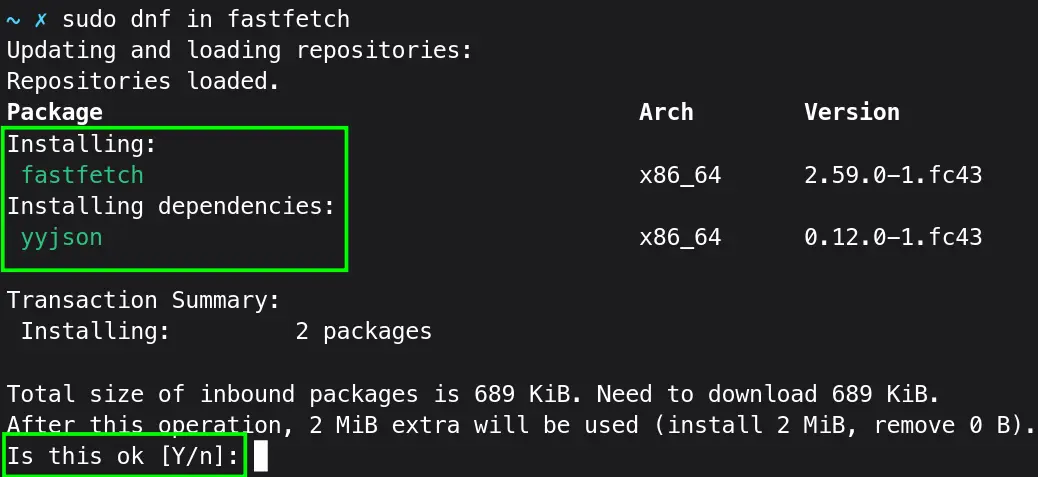
You can also add:
|
|
It will rate the mirror based on latency. But not all mirrors have up-to-date packages, you might see mirror errors during updates and installations.
 The
The DNF5 can automatically handle mirrors based on their availability and speed. You don’t generally need this option.
Upgrade
System
Go to Gnome-Software and Click on updates tab. Then Click Downloads button.
Or upgrade via DNF:
|
|
And Restart your system.
Firmware
You can update your firmware (BIOS, Device Drivers) if your system supports it:
sudo fwupdmgr refresh --force
sudo fwupdmgr get-devices # Lists devices with available updates.
sudo fwupdmgr get-updates # Fetches list of available updates.
sudo fwupdmgr update
You may need to restart to apply updates.
BIOS updates can brick your PC. Be careful with BIOS updates.
Beautiful Cursors
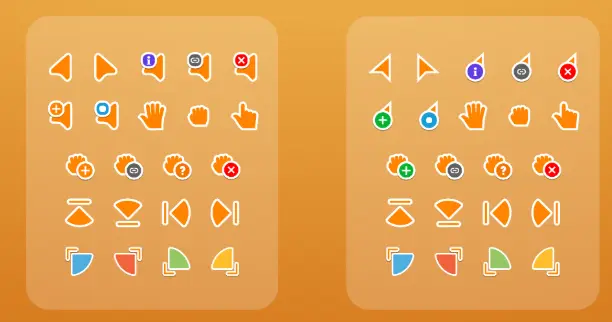
First install gnome-tweaks, it will be helpful in many ways.
sudo dnf install gnome-tweaks
Download the Bibata Cursors, from their release page, or with the following command directly:
wget https://github.com/ful1e5/Bibata_Cursor/releases/latest/download/Bibata.tar.xz
Let’s make an icon directory:
mkdir -p ~/.local/share/icons
Now let’s extract the Bibata.tar.xz to the icons directory:
tar -xvf Bibata.tar.xz -C ~/.local/share/icons
tarArchival and extraction utility-x/--extractExtract files from an archive-v/--verboseVerbosely list files processed-f/--file=ARCHIVEUse archive filename or device ARCHIVE-C/--directory=DIRChange to DIR before performing any operations
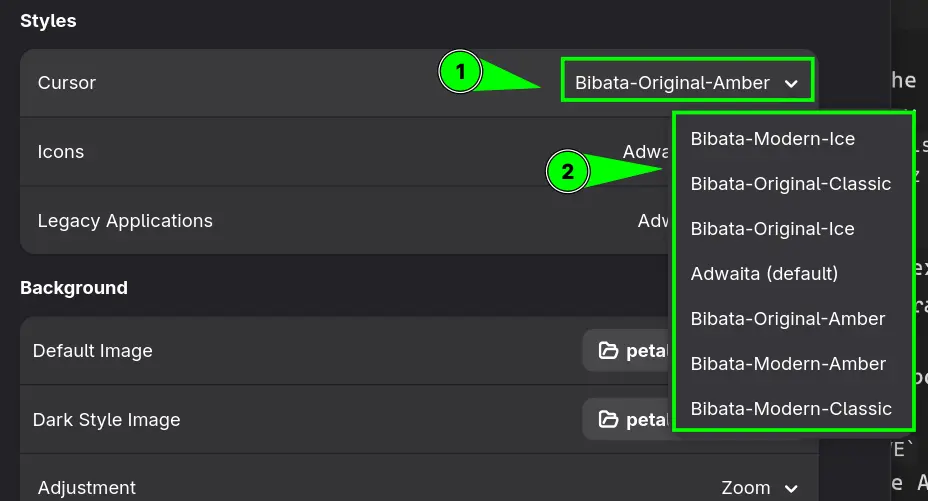
Now just open gnome-tweaks app, go to Appearance. Under Styles > Cursors, change it to your liking:
RPM Fusion: Free and Non-Free
RPM Fusion repos are necessary to obtain pieces of software which are not available in the Official Repos due to licensing restrictions like multimedia codecs, GPU drivers etc.
Using DNF:
sudo dnf install https://mirrors.rpmfusion.org/free/fedora/rpmfusion-free-release-$(rpm -E %fedora).noarch.rpm https://mirrors.rpmfusion.org/nonfree/fedora/rpmfusion-nonfree-release-$(rpm -E %fedora).noarch.rpm
To enable WebRTC support:
sudo dnf config-manager --enable fedora-cisco-openh264
Appstream metadata provide GUI way to install RPM Fusion packages via GNOME Software or KDE Discover.
sudo dnf update @core

# Since DNF5(F41 & later), the Fedora groups cannot be extended by RPM Fusion. So you need to mention the package explicitly

sudo dnf install rpmfusion-\*-appstream-data
Official Configuration Guide for RPM Fusion Setup
Multimedia Codecs
It’s a good idea to switch to full ffmpeg package to avoid version mismatches.
sudo dnf swap ffmpeg-free ffmpeg --allowerasing
Install Additional Codecs
To play all kinds of multimedia in Browsers as well as through multimedia players.
sudo dnf update @multimedia --setopt="install_weak_deps=False" --exclude=PackageKit-gstreamer-plugin
Hardware Accelerated Codec
Intel
For Intel Recent Hardware (rpmfusion-nonfree):
sudo dnf install intel-media-driver
For Broadwell (5th gen) and newer chipsets particularly Ice Lake (10th gen) and newer.
For older Hardware (rpmfusion-free):
sudo dnf install libva-intel-driver
Hardware codes with AMD (mesa)
This is needed since Fedora 37 and later. It mainly concerns the AMD hardware:
sudo dnf swap mesa-va-drivers mesa-va-drivers-freeworld
If using i686 compact libraries (for steam or a likes) for older 32-bit systems:
sudo dnf swap mesa-va-drivers.i686 mesa-va-drivers-freeworld.i686
For NVIDIA, Broadcom Network Drivers, DVD drivers, checkout the official detailed guide.
Brave and Chromium: Hardware Video Acceleration
You will need following flags to enable hardware-based video acceleration on Brave and chromium based browsers.
Add following config to brave-flags.conf file to $HOME/.config/ directory:
|
|
For Chromium/Chrome browser save following config to chromium-flags.conf or chrome-flags.conf to $HOME/.config/ directory:
|
|
Flathub Repo
To add official Flathub repo:
flatpak remote-add --if-not-exists flathub https://dl.flathub.org/repo/flathub.flatpakrepo
Fedora comes with the Fedora Flathub Repo, which has limited number of apps curated by Fedora Maintainers, not the respective app developers. To remove it:
flatpak remote-delete fedora
flatpak remote-delete fedora-testing
Disable GNOME Super + NUM Keybinds
On Fedora Workstation, pressing any number from 0 to 9 with Super key, will open respective app from GNOME dock. Let’s disable it for good:
for i in $(seq 1 9); do gsettings set org.gnome.shell.keybindings switch-to-application-${i} "[]"; done
The Super + NUM can be better use for quickly switching among GNOME workspaces.
GNOME Extensions
I like clean GNOME experience with only my chosen few extensions. Let’s remove default Fedora Workstation Extensions:
|
|
I had these two installed by default. To check whether there are more:
|
|
It will list all the installed packages and then using grep will only print packages with gnome-shell-extension pattern in their name.
These default extensions can only be uninstalled via DNF, Extension Manager will have no uninstall option for them.
GNOME: Extension Manager
It allows you to manage and install gnome extensions in a single application.
Let’s install:
|
|
My minimal but useful extension list:
- AppIndicator and KStatusNotifierItem Support: It will add Notification tray icon support.

-
Caffeine: Disable screensaver and auto suspend.
-
Copyous: My favorite and most used tool, a clipboard manager with text & images support.
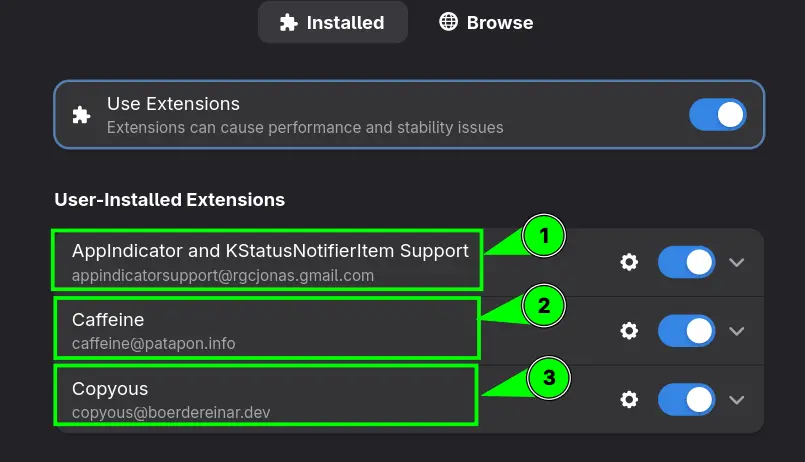
There are many more extensions available. You can choose whatever you like. I’m personally a fan of default GNOME experience with necessary extensions only.
System Backups: Btrfs Assistant
Fedora uses btrfs file system. Backups can be extremely fast.
Let’s install:
|
|
Open btrfs-assistant app, go to snapper settings create a backup config like this:
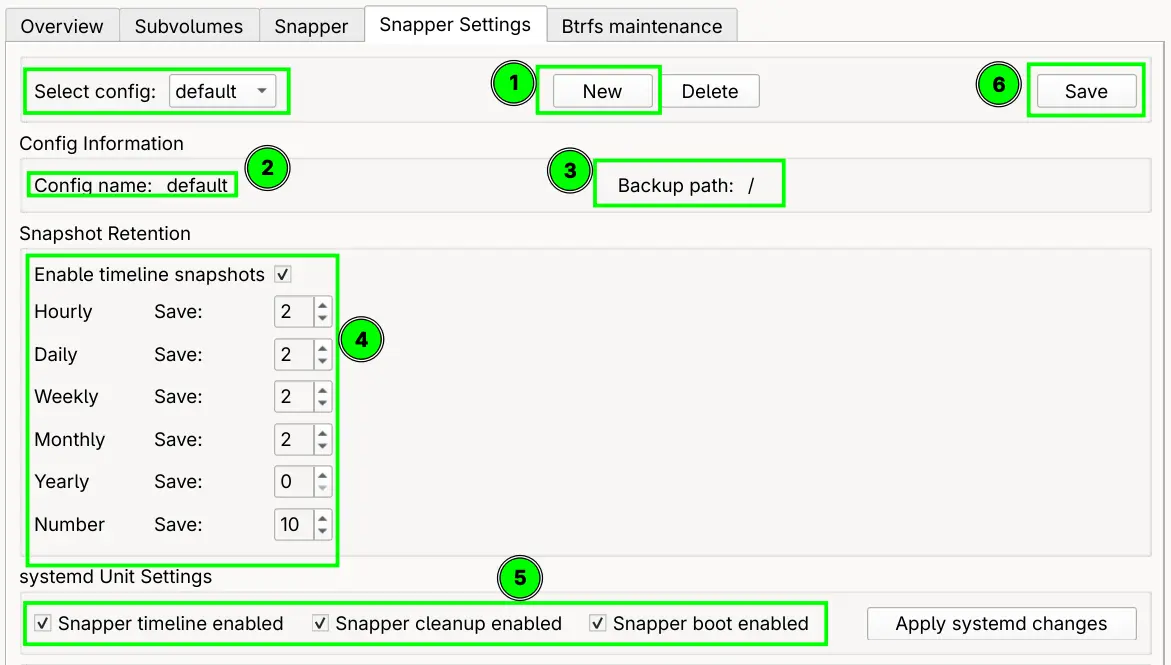
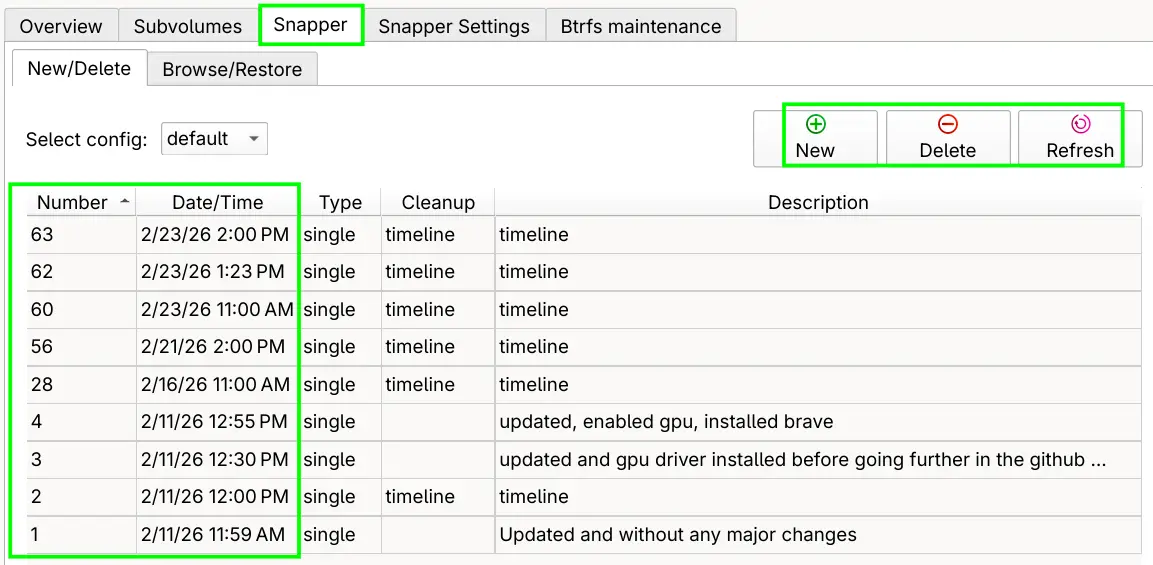
After sometime, backups will start appearing in the Snapper section of the app. The btrfs-assistant app will take of backups creation and cleanups, but you can manually create and delete backups too.
Useful Applications
Improve your Fedora experience with useful apps. Following apps are recommended and used by me.
Brave Browser
Add brave-browser repository and install:
sudo dnf install dnf-plugins-core

sudo dnf config-manager addrepo --from-repofile=https://brave-browser-rpm-release.s3.brave.com/brave-browser.repo

sudo dnf install brave-browser
To install Chrome. Click here…
You can go to Software Center. Click three dots buttons, then Software Repositories and enable Google Chrome repo. Hit the refresh button, then search and install Chrome Browser.
Alternatively, you can install it from Flathub, but it will need extra steps to enable hardware video acceleration.
Chromium is available through Fedora repos:
sudo dnf in chromium
Firefox comes pre-installed on Fedora.
Visual Studio Code
Install the key and add yum repo:
sudo rpm --import https://packages.microsoft.com/keys/microsoft.asc &&
echo -e "[code]\nname=Visual Studio Code\nbaseurl=https://packages.microsoft.com/yumrepos/vscode\nenabled=1\nautorefresh=1\ntype=rpm-md\ngpgcheck=1\ngpgkey=https://packages.microsoft.com/keys/microsoft.asc" | sudo tee /etc/yum.repos.d/vscode.repo > /dev/null
Then update package cache and install the package:
dnf check-update &&
sudo dnf install code # or code-insiders
Screenshots: Gradia and Flameshot
Gradia is a screenshot taking and annotation tool. It’s available as flatpak:
flatpak install be.alexandervanhee.gradia
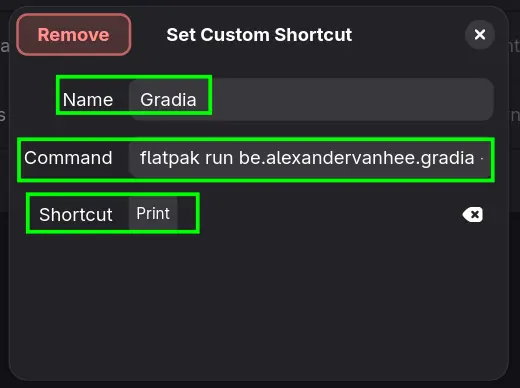
Add custom shortcut to via GNOME settings:
flatpak run be.alexandervanhee.gradia --screenshot=INTERACTIVE
It will take interactive screenshot via GNOME’s built-in tool, then pipe that image to Gradia.
Flameshot is another great screenshot tool with annotation support.
|
|
Due to Wayland limitations, it doesn’t run without certain changes.
Let’s make a script:
|
|
Save these lines to flameshot-fix file. Put this file inside $HOME/local/bin/ directory. Make it executable:
|
|
+xMakes script file executable, without you can’t run it
Make sure $HOME/.local/bin is in the path. Add this to your .bashrc
export PATH=~/.local/bin:$PATH
Close the terminal and open again.
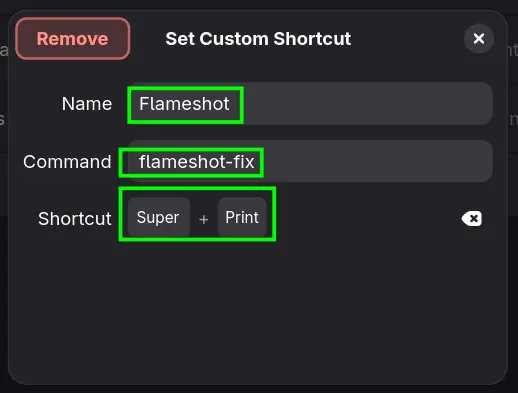
Let’s create a GNOME custom shortcut:
Name: Flameshot
Command: flameshot-fix
Shortcut: [YourChoice]
Bitwarden
It’s a free and open-source Password Manager of choice. Let’s install it:
latest=$(curl -s https://api.github.com/repos/bitwarden/clients/releases/latest \
         | grep "browser_download_url.*x86_64.rpm" \
         | cut -d '"' -f 4)
wget "$latest"
The curl commands uses GitHub API to fetch latest package name and pass it to variable latest which is turn used by wget to download.
Run inside the download directory
sudo dnf install ./Bitwarden*.rpm
Or install it via Flathub:
flatpak install com.bitwarden.desktop
Obsidian
Obsidian is a note-taking app:
flatpak install md.obsidian.Obsidian
MegaSync Desktop
Mega is cloud storage solution like Google Drive. Install it via:
wget https://mega.nz/linux/repo/Fedora_42/x86_64/megasync-Fedora_42.x86_64.rpm && sudo dnf install "$PWD/megasync-Fedora_42.x86_64.rpm"
It will install megasync app, and add the repo to /etc/yum.repos.d/ directory. Subsequent upgrades can be done via DNF.
Cryptomator
It’s a File based Encryption tool. Let’s install it:
flatpak install org.cryptomator.Cryptomator
VPNs: Windscribe, ProtonVPN and Cloudflare Warp
To install windscribe:
sudo dnf install windscribe
Windscribe is a privacy respecting VPN provider. It also gives 10 GB free VPN usage data per month.
ProtonVPN has more involved installation process.
Download the package containing Repo config and keys:
wget "https://repo.protonvpn.com/fedora-$(cat /etc/fedora-release | cut -d' ' -f 3)-stable/protonvpn-stable-release/protonvpn-stable-release-1.0.3-1.noarch.rpm"
Install the ProtonVPN repo:
sudo dnf install ./protonvpn-stable-release-1.0.3-1.noarch.rpm && sudo dnf check-update --refresh
Install the app:
sudo dnf install proton-vpn-gnome-desktop
Accept OpenPGP key during installation by replying y to the prompt.
To show system tray icon (optional):
sudo dnf install libappindicator-gtk3
It requires AppIndicator and KStatusNotifierItem Support extension installed on the GNOME system. Restart.
To completely remove the ProtonVPN app, follow the official guide.
Check detailed guide on installation and configuration of cloudflare-warp on Linux.
Virtual Machine Manager
Fedora comes preconfigured with KVM/QEMU support. It comes bundled with gnome-boxes, but it’s very limiting so uninstall it:
sudo dnf remove gnome-boxes
Let’s install virt-manager:
sudo dnf install virt-manager
To fix passwords prompts on opening Virtual Machine Manager, see this.
Distrobox
Distrobox helps you run any Linux distribution inside your terminal. Fedora comes preconfigured with podman and toolbox which is what distrobox is based on.
The toolbox only supports Fedora with pretty limited features, let’s get rid of it:
sudo dnf remove toolbox
And install distrobox:
sudo dnf install distrobox
Misc.
Let’s install FFaudioConverter, Flatseal, GIMP, Kid3, LocalSend, and Calibre:
flatpak install com.github.Bleuzen.FFaudioConverter com.github.tchx84.Flatseal org.gimp.GIMP org.kde.kid3 org.localsend.localsend_app com.calibre_ebook.calibre
FFaudioConverterAudio conversion and compression appGIMPFOSS Photoshop alternativeKid3Audio metadata EditorLocalSendSends and Receives file via Local NetworkCalibreE-Book reader and metadata editor
Install few useful programs for Fedora repos:
|
|
neovimCLI text editorimagemagickCLI based image display and manipulation programtealdeerShow simplified usage of CLI commands with examplesbatBettercatlsdBetterlsyaziTerminal based file manager with vim keybindingstmuxTerminal multiplexerfzfA CLI fuzzy finderripgrepA bettergrepfd-findA betterfindseahorseGNOME encryption keys manager, a keyring manager
Fix GTK3 Apps Theming
To fix theming for megasync, cloudflare-warp please install:
sudo dnf install adw-gtk3-theme
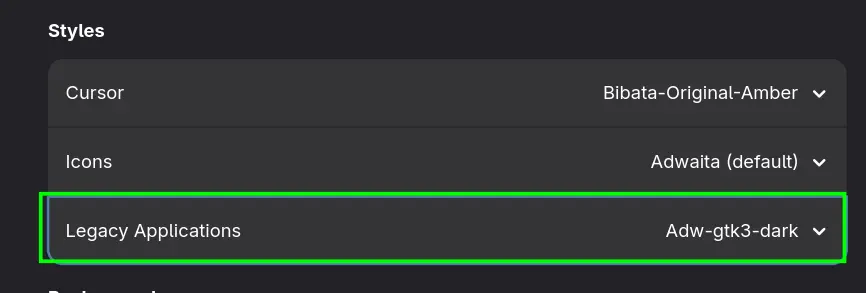
Open gnome-tweaks app, go to Appearance tab, under Styles > Legacy Applications, select Adw-gtk3-dark
For Flatpak’s like FFaudioConverter and Obsidian:
flatpak install org.gtk.Gtk3theme.adw-gtk3 org.gtk.Gtk3theme.adw-gtk3-dark
Flatpak applications should pick up the right theme automatically. Reboot, if theming is still bad see this.
References
- Fedora 43 Post Install Guide — A Great Optimization Guide
- Bash CLI Tips & Tricks — Learn Terminal Superpowers
- Practical BASHRC Tweaks — Make Your Terminal, a Beautiful Place to Spend Time
- How to Diagnose and Fix Slow Boot on SystemD-based Linux Distros — Investigate and Fix Slow Boot-up
- GNOME: ScreenIdle and ScreenLock Customization — If You Love KDE Screen Idle and Lock Settings
- Managing dotfiles the Right Way: GNU Stow and ln -s — How to Manage Linux Configuration Files Across Distros
- GNOME Tips: Keyboard Shortcuts for More Than 4 Workspaces — Need More than 4 Default Workspaces
- SysRq: The Secret Key to Safely Shutting Down a Frozen Linux System — No More Hard Reboots for Frozen System