If you are looking for .bashrc config customization tutorial, please read Practical BASHRC Tweaks guide.
As a Linux user, working in the terminal should be a pleasure not a thorn. Let’s discuss some useful tips and tricks for a terminal with bash shell (With default bashrc). These are the command or keyboard shortcuts which can be useful while working in the terminal.
There are two modes of Bash shell, emacs and vi, by-default it is set to emacs unless you change it. Most of the key binds mentioned here only work in the default emacs mode. To change the mode, set -o vi/emacs.
See all the Terminal Shortcuts
Type in the terminal:
bind -p
It will list down all the available shortcuts currently bound (available) and not bound for bash shell.
Clear the terminal
You can type:
clear
It will clear all the outputs from the Terminal screen.
The better is to press Ctrl + L which will clear out the screen.
Exit from the Terminal
To exit, type in the CLI:
exit
It will close the Terminal window.
Or the better is to press Ctrl + D shortcut to close the terminal.
The keyboard shortcut to close or exit the terminal only works when no terminal processes are running. As running program like top, less etc., receives that command instead of the terminal.
Reverse History Search
Pressing Ctrl + R, puts you in the reverse history search mode.

Type a word, and you can press Ctrl + R multiple times, to see all occurrences of that word in the bash history.
When you find a command you’re looking for, press Enter, it will immediately run the command.
But if you don’t want to run the command directly, press Ctrl + J, it will copy the command to the CLI without running it.
Stop the Running Process
To stop a running process in the terminal, press Ctrl + C, it sends SIGINT (interrupt) signal to the process running in the foreground.
Or press Ctrl + Z to send SIGSTP (suspend) signal to the process running in the foreground.
Accepting the CLI Commands
To accept the CLI command, press Enter.
But you knew that already, didn’t you? Let’s learn the pro way:
- The key combinations like Ctrl + J and Ctrl + M also act as a Carriage Return(CR) in the terminal.
Moving Around
Jumping around:
- Press Ctrl + A to move the cursor to the start of the line.
- Press Ctrl + E and the cursor jumps to the end of the line.
Moving character by character on the CLI commands:
- To move one character forward Ctrl + F
- To move one character backwards Ctrl + B
Editing/deleting Commands
Character by character deletion:
- To delete one character backwards from the cursor, press Ctrl + H
- To delete one character forward from the cursor position Ctrl + D
Word-by-word deletion:
- To delete the whole word, before a cursor, press Ctrl + W
- To delete the whole word, after a cursor, hit Alt + D
End/start of the line deletion:
- Press Ctrl + K, to delete from cursor to end of the line
- Press Ctrl + U, to delete from cursor to beginning of the line
Deletion by Word/Start/end of line, also acts as cut command, and to repaste what’s yanked, hit Ctrl + Y, then cycle through yanked items by pressing Alt + Y numerous times.
Insert argument of last Command
If we run
|
|
If we type only ls in the CLI, and hit Alt + ., it will inset the last argument of previous command, -alh in this case.
Keep pressing the key bind, to cycle through all last arguments of the previous commands.
Edit and Execute Command
You’re working with some large CLI commands, and want to easily edit them.
Press Ctrl + X/Ctrl + E together in one go, the command written in the CLI will open up in the default text editor.
After making necessary changes, exit the editor saving the command, the newly edited command will run in the CLI directly after that. Or quit the editor without saving the command.
To print your default editor:
echo $EDITOR
To set your default editor, add the following line to your .bashrc
export EDITOR=nvim
Searching through Bash History
On the CLI, hitting Ctrl + P, it will cycle through previous bash history commands.
To move through history in forward, hit Ctrl + N. Both these two shortcuts can be combined to move forward or in reverse.
Possible Command and Path Completions
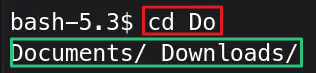
While writing a command, or a path, and hitting TAB, will complete or show possibilities of commands or paths.
cd Do
Hit TAB, it will list down all possible paths starting with Do.
The nohup Command
When you run firefox in the terminal:
firefox
If the Terminal is close down, it will close the firefox application too.
Running firefox with nohup (no hang up) signal, close the terminal will not stop the app from running.
nohup firefox
To make it truly a background process:
nohup firefox &
The bg and fg Commands
Running bg in the terminal will list down the processes running in the background.
To run, any process or app in the background add ampersand & at the end of their name:
top &
To bring it to the foreground:
fg %top
If single background process is running, only using fg to bring it to the foreground will suffice.
Unlike nohup command, closing the terminal window, will kill all the background running processes.
Terminate/Kill Processes
To kill a frozen or misbehaving process from the terminal
pkill firefox
Forgot to Run with sudo
It happens to the best of us, we ran a command, but it was supposed to run with the sudo privileges.
To run the previous command with sudo:
sudo !!
!!Repeats the last command
Not So Sexy Neofetch
You don’t need an extra tool to see all the information about your distro and hardware:
cat /etc/os-release
Not so pretty, but works all the time.
Display Shell Version
Press Ctrl + x and Ctrl + v together to print the shell version in the CLI.

References
- What is your single most favorite command-line trick using Bash? — The OG Stack Overflow
- Bash Command Line Tips to Help You Work Faster — The freeCodeCamp